
Schedule incoming work and events within Autoflow.
Make scheduling simple by managing appointments in a single application.
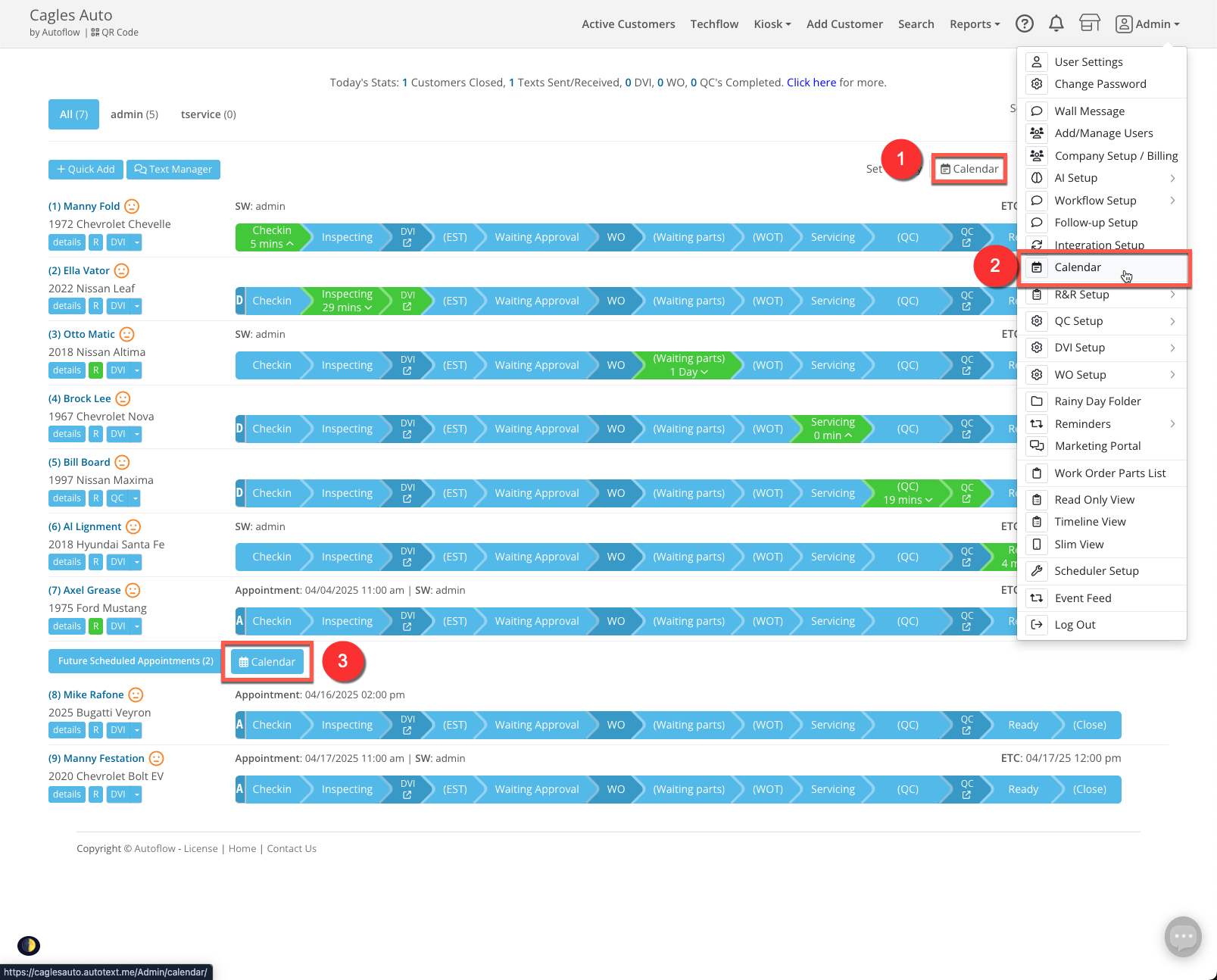
Open the Calendar (Admins and Service Writers)
- Open from the button between SetPriority and TechFlow
- Open from your user menu
- Open from the “Future Scheduled Appointments” Tab
Note – Technicians are unable to see or use the calendar.
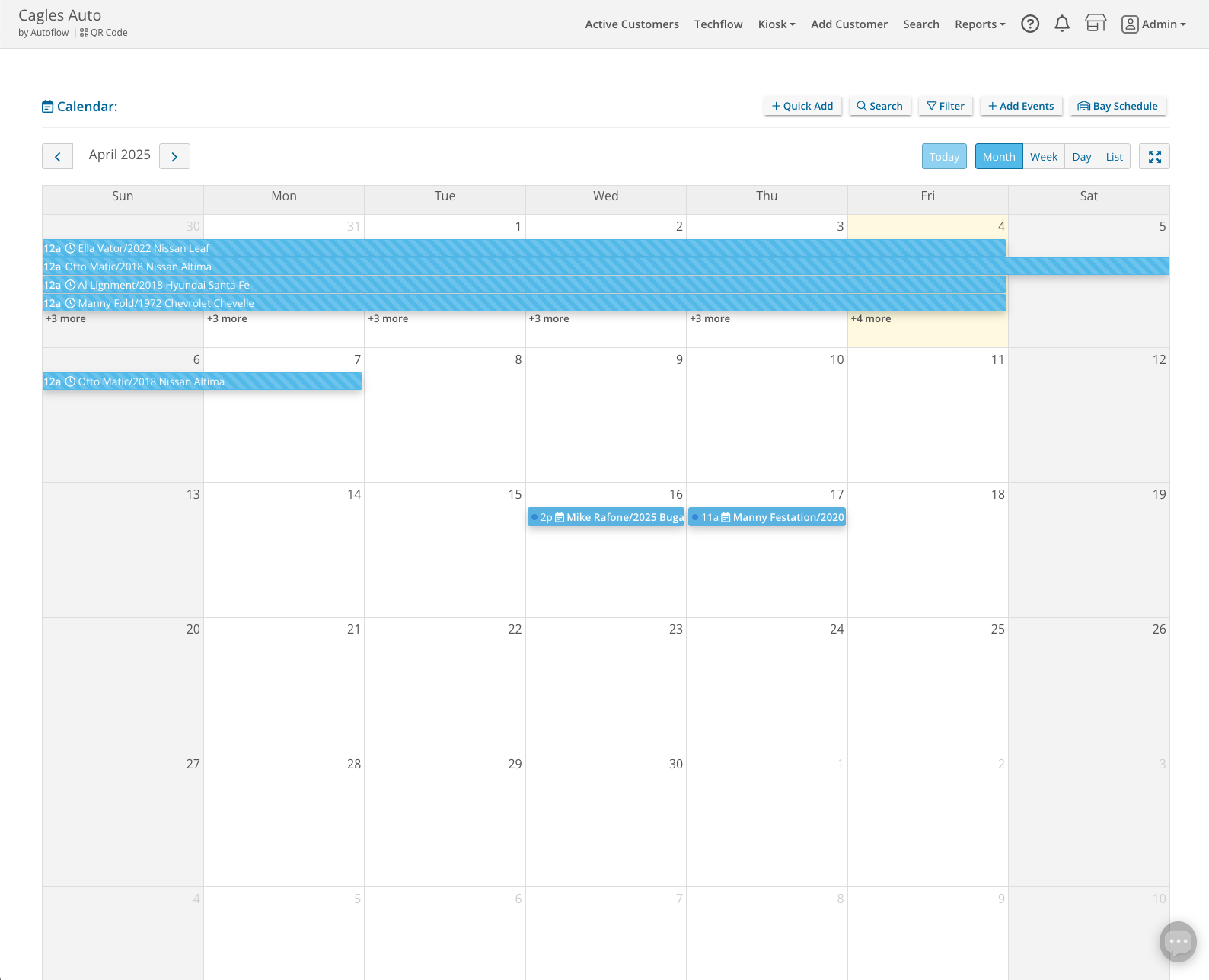
Choose Your View
- Month View
- Week View
- Day Grid or Time Grid
- Day View (like the time grid in week view but easier to see details)
- List View
- List Week or List Month
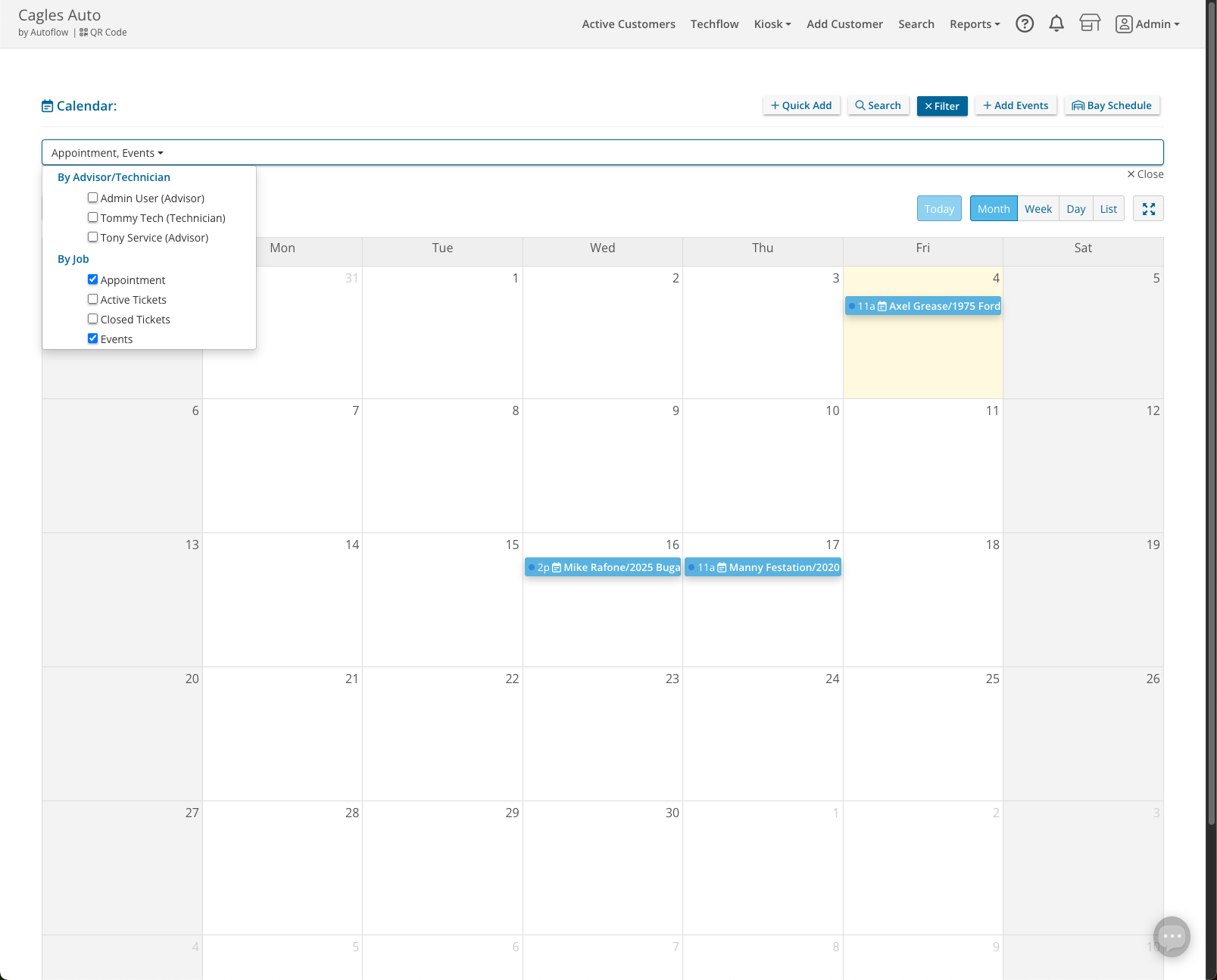
Filter By Staff
Alternatively, you can filter your calendar by staff members.
By assigning appointments to techs and advisors you can build manage expectations and track availability much more clearly.
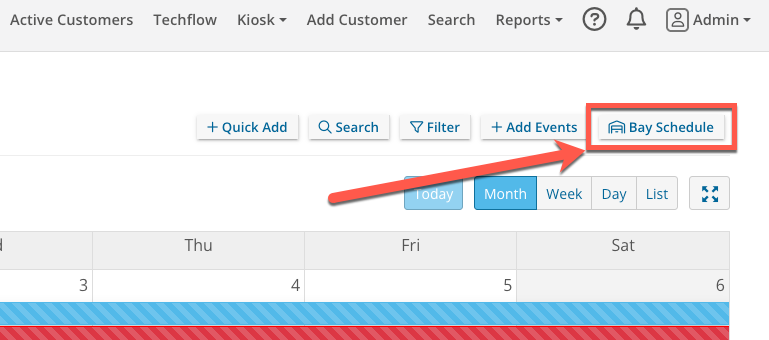
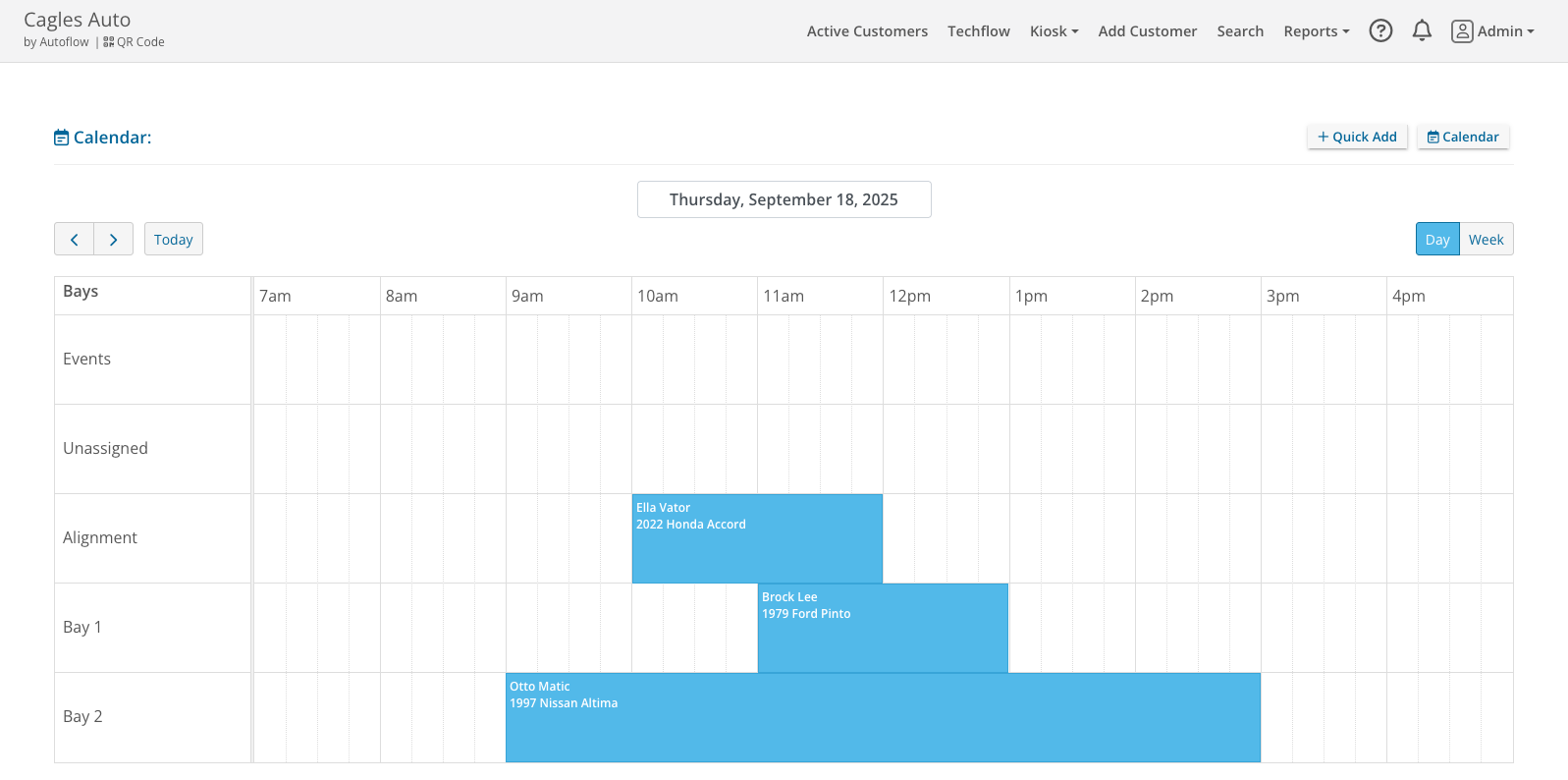
Bay Scheduler
Switch to Bay Scheduler Mode
By assigning appointments to techs and advisors you can build manage expectations and track availability much more clearly.
Using Bay Scheduler Mode
- New appointments from the Kiosk Scheduler will show up in the “Unassigned” bay
- Drag appointments to bays to assign that appointment to that bay
- Drag end of the appointment to the duration that appointment is expected to occupy that bay
- Click and drag in a blank space to create a new appointment in that bay
Calendar with Self Checkin / Scheduler
Tickets made in Autoflow calendar will be recognized by your Checkin/Scheduler. You preferences for scheduling and availability will be properly blocked off and clients will not be able to select unavailable times.
For more on administrating your Checkin/Scheduler, see this page: Kiosk Setup
Shop Management System Integration
You can leverage SMS integration to sync tickets from your SMS to Autoflow, further ensuring your appointments are visible to your Autoflow online scheduler.


